How OCR Technology Simplifies File Organization for Beginners
By The Librogadget Team | Updated November 2, 2025
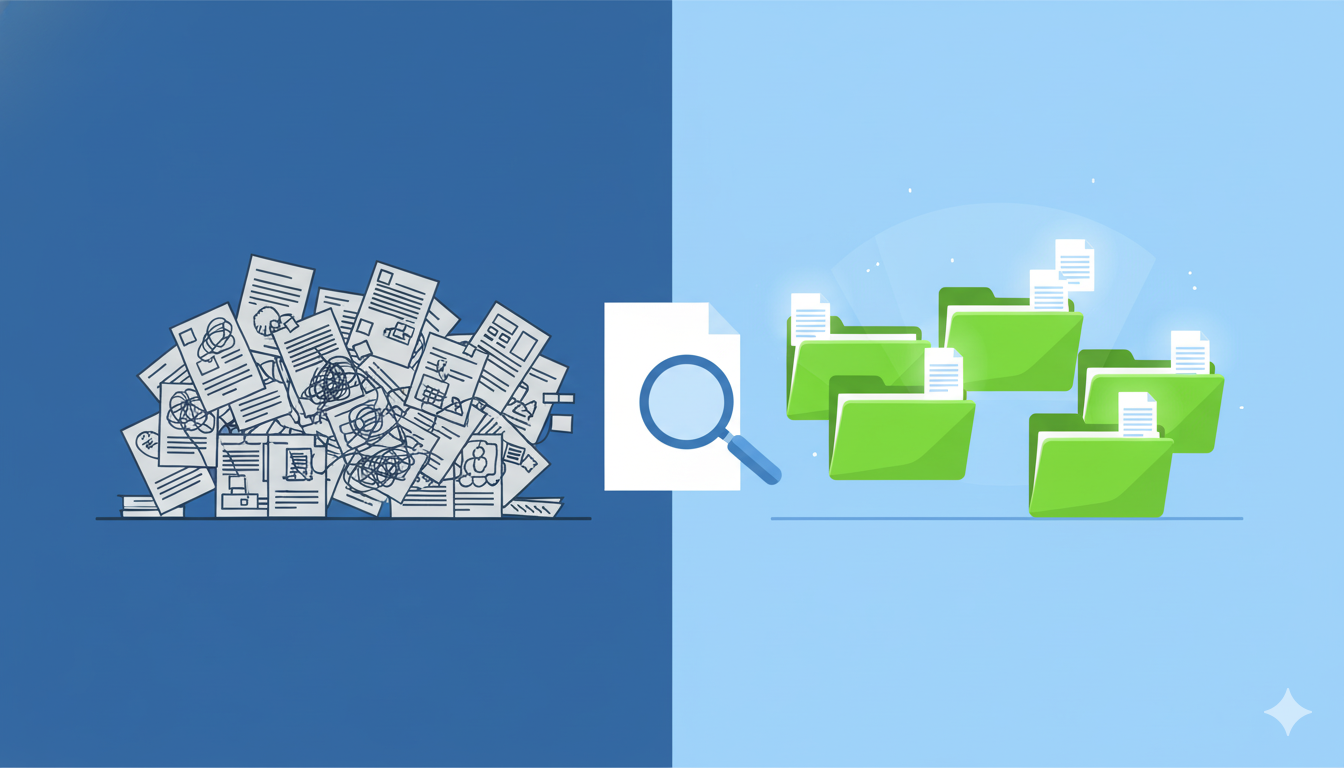
If you have a shoebox full of receipts, a filing cabinet overflowing with old bills, or a desk covered in business cards, you know the pain of "paper chaos." Even if you've tried to go digital by scanning everything, you often end up with a "digital junk drawer"—a folder full of unsearchable images named scan_001.pdf or IMG_2034.jpg.
What if you could make all that paper text as searchable as an email? That's where OCR comes in. It's not some far-future sci-fi concept; it's a simple, accessible technology that can completely change how you organize your digital life. Think of it as a magic translator that turns pictures of words into actual, searchable words you can copy, paste, and find instantly.
Don't worry if you're not a "tech person." This guide is for you. We'll walk through what OCR is, how you can start using it today (probably with the phone in your pocket), and how it can finally help you win the war against file chaos.
On This Page
- What is OCR? (And Why Should You Care?)
- A (Very) Simple Look at How It Works
- Your First OCR Project: A Step-by-Step Guide
- 5 Common Uses That Will Simplify Your Life
- Putting It All Together: Smart Organization
- Troubleshooting: What to Do When OCR Gets It Wrong
- The Future of OCR (It's Already in Your Hand)
- Conclusion: You're Ready to Get Organized
What is OCR? (And Why Should You Care?)
OCR stands for Optical Character Recognition. That's just a fancy way of saying "reading text from an image."
When you take a picture of a receipt, your phone sees a collection of pixels—dots of color that form shapes. It has no idea those shapes form the word "Coffee." When you scan a document, your computer just saves a big picture of that page. You can't search for a client's name or copy a paragraph from it. It's a "dead" document.
OCR technology scans that image, identifies the shapes as letters and numbers, and converts them into digital text. The result is a "live" document. You can now:
- Search: Instantly find the document by searching for any word inside it (e.g., search "Acme Inc" to find all invoices from that client).
- Copy & Paste: Grab a quote from a scanned book page or an address from a business card.
- Edit: Correct a typo in a scanned contract (with the right software).
- Organize: Automatically sort and file documents based on their content.
A little history: The idea has been around since the early 1900s for helping the blind read, but it became commercially viable in the 1970s. Back then, you needed a massive, expensive machine. Today, the same (or better) technology is built into free apps on your phone.
A (Very) Simple Look at How It Works
Think of it like a-two step process.
- Pattern Matching: The software first cleans up the image (straightens it, increases contrast). Then it looks at a shape, like an "A". It compares this shape to a library of thousands of "A"s in different fonts and sizes until it finds a match. It does this for every single character.
- Feature Detection: More modern OCR (what you likely use) is smarter. It breaks letters down into their components. It sees an "A" as "two diagonal lines meeting at the top, with a horizontal line in the middle." This is how it can read messy handwriting or weird fonts it's never seen before.
Modern AI-powered OCR adds a third step: context. It guesses that "qulck" is probably "quick" because it's next to "brown" and "fox." This makes it incredibly accurate.
Your First OCR Project: A Step-by-Step Guide
Let's stop talking and start doing. You can do this right now in 5 minutes. We'll use a sample invoice as our test.

-
Step 1: Choose Your Tool. You don't need to buy anything.
- On your Phone: The built-in Notes app (iOS) or Google Keep (Android/iOS) have amazing, free OCR. Google Photos also automatically OCRs any picture you take.
- On your Desktop: Google Drive is a great free option. If you have Microsoft Office, OneNote has a powerful "Copy Text from Picture" feature.
-
Step 2: Capture the Document.
Open your chosen app (let's use the iOS Notes app as an example). Create a new note, tap the camera icon, and choose "Scan Documents." Your phone will automatically find the edges of the paper, straighten it, and save it as a clean black-and-white scan.
-
Step 3: Process and Verify the Text.
That's it! In the Notes app, the text is *already* searchable. Tap the "Live Text" icon (a little box with lines) to select and copy the text directly. Try it: After scanning, go to your main Notes search bar and type a word from the invoice, like the client's name. Your new note will pop up instantly.
Alternative (Google Drive): Upload a PDF or JPG of the invoice to Google Drive. Right-click the file and choose "Open with" > "Google Docs." Google will process the image and open a new Doc with the original image at the top and all the extracted, editable text right below it. Magic.
Beginner Tip: The simplest way to start is to just take pictures of your receipts and business cards and upload them to Google Photos. Days or weeks later, open the Google Photos app and search for "sushi" or "Acme Corp." It will find the photos. It does all the OCR for you in the background without you even asking.
5 Common Uses That Will Simplify Your Life
Okay, so it's cool, but how is this *practical*? Here's how you can use it to clean up your digital chaos.
-
Tame the Receipt Monster:
The problem: Your wallet is full of faded receipts you need for taxes or expense reports.
The OCR solution: Use a scanning app (like Microsoft Lens or Adobe Scan) to quickly scan them. The app will OCR them, and you can name the file20251102_client_lunch.pdf. When tax time comes, you just search your "Expenses" folder for "lunch" or "taxi" to find every relevant receipt. -
Digitize Your Business Cards:
The problem: You have a stack of business cards from that conference two months ago, and they're just collecting dust.
The OCR solution: Use your app's "Business Card" mode. It will scan the card, find the Name, Email, and Phone Number fields, and ask if you want to save them directly to your phone's contacts. No more manual typing. You can then throw the physical card away. -
Make Your Books Searchable:
The problem: You remember a great quote in a physical book, but you can't find it.
The OCR solution: Use your phone's camera. Point it at the page, and the Live Text feature will let you copy the paragraph right off the page. Or, scan the chapter into a Notes app and now you can search the entire thing for keywords. -
Handle Mail and Bills Instantly:
The problem: A pile of mail (bills, bank statements, letters) is on your counter.
The OCR solution: Adopt a "one-touch" policy. Open the mail, scan it with your phone, and let the OCR process it. Now you can search "Comcast bill" or "water bill" to find it. You can shred the original and your desk stays clean. -
Rescue Old Family Recipes:
The problem: Your grandma's handwritten (and stained) recipe cards are fading.
The OCR solution: Modern OCR is surprisingly good at handwriting. Scan the cards. You can now copy the text, save it digitally, and even email the "flour" and "sugar" list to yourself as a searchable shopping list.

Putting It All Together: Smart Organization
This is the final step. OCR makes your files *searchable*, which is great. But the real power comes when you combine it with good file *naming*.
Imagine scanning an invoice. The OCR reads the text "Invoice #: 3451," "Client: Acme Inc," and "Date: Nov 2, 2025."
Instead of you having to manually rename the file 20251102_Acme_Inc_Invoice_3451.pdf (which is a great file name!), smart tools can do this for you. This is where advanced file management software comes in. For example, a tool like RenameIQ can be configured to use its built-in OCR to "look inside" your scanned documents, find those key pieces of information, and then automatically rename and sort the files into the right folders based on rules you set.
This is the dream: you dump all your scans into one "Inbox" folder, and the software automatically files them away, perfectly named. This is how you truly conquer file chaos.
Troubleshooting: What to Do When OCR Gets It Wrong
OCR isn't perfect. Sometimes it'll read "clear" as "dear" or "O" as "0". When you get bad results, 99% of the time it's a "garbage in, garbage out" problem. The quality of your scan is key.
- Bad Lighting: This is the #1 culprit. If your shadow is on the page or the room is too dim, the OCR will struggle. Fix: Scan near a bright, even light source, like a window during the day. Most scanner apps have a "flash" light that helps, too.
- Blurry Image: If your hand shook, the text will be unreadable. Fix: Hold your phone steady with both hands. Tap the screen to focus the camera before you capture.
- Weird Angles: Scanning a page from a sharp angle distorts the letters. Fix: Hold your phone directly above the document, parallel to the page. Good scanner apps will detect the page edges and correct for skew automatically.
- Creased or Glossy Paper: A hard crease can look like a letter, and a glossy magazine page can have a bright glare. Fix: Try to flatten the paper as much as possible. Change your angle slightly to avoid glare from overhead lights.
The Future of OCR (It's Already in Your Hand)
The future of OCR isn't just about documents. It's about "contextual awareness."
This is already here. It's called Mobile OCR or Live Text. You can point your phone's camera at a poster, and your phone will recognize the website address and ask if you want to open it. It will see a phone number on a "For Sale" sign and ask if you want to call it. It can even translate a menu in another language in real-time.
This technology is only getting better. Soon, you'll be able to point your camera at a room and it will identify all the objects, or at a whiteboard after a meeting and it will not only scan the notes but also turn them into a to-do list and add the action items to your calendar.
Conclusion: You're Ready to Get Organized
OCR is no longer a complicated, expensive tool for big corporations. It's a free, powerful assistant sitting in your pocket.
You don't have to digitize your entire life today. Start small. The next time you get a business card, scan it. The next time you get an important bill, scan it. The next time you're looking for a receipt, try searching for it in Google Photos first.
By turning your "dead" images into "live," searchable text, you're not just cleaning up your desk. You're building a personal, searchable database of your life. And that's the first and most important step to true digital organization.